
If you run a school or its front office, you may keep enrollment in one place, attendance in another and fees in a third. A school management system is software that keeps all of them in one place, together with class schedules, grading and communication with families. Many US schools call the same kind of system a student information system (SIS).
Schools often start shopping when their separate tools stop agreeing and the same student has a different record in each. If most of the trouble sits in one area, such as attendance or fees, a specialized tool connected to the system you have may be enough. If it is spread across every office, one system that holds a single record for each student is usually worth the larger project.
Key takeaways
- A school management system is software that keeps student records, attendance, class schedules, grading, fees and family communication in one place.
- The jobs your offices do today tell you which modules you need.
- How well a system connects to the tools you keep matters as much as its list of modules, because otherwise your staff type the same data twice.
- Training and a named owner keep your staff using the system after the first weeks.
What is a school management system?
A school management system is software that holds your school’s student records and daily routines in one place, so every office works from one shared record for each student. Vendors also call it a school administration system or a school information management system, and the names usually describe the same kind of software.
Most systems are built from modules, one for each job, and many vendors let you buy only the ones you need. The common modules are:
- Student records hold each student’s enrollment, contact details, attendance history and disciplinary records.
- Class schedules set which teacher, room and students meet in each period, and when clubs and activities run.
- Attendance tracks who was in each class and who was absent or late.
- Grading and assessment keeps the gradebook, calculates results and produces report cards and progress reports.
- Family communication sends messages to parents and guardians, often through a parent portal (a website or app where families see grades and attendance).
- Fees and finance collects tuition, issues invoices, records payments and tracks spending against the budget.
An all-in-one system saves you from keeping a student’s record in several places, but every office changes its routine at once, so it asks more of your staff at the start. The alternative is a few connected tools. Connected means that data entered in one appears in the others without anyone retyping it.
What a school management system does for your school
Most of what a school management system saves comes from one change. Offices stop keeping their own copies of a student’s details, so a detail entered once reaches everyone who needs it.
Less time on administration
In many school offices, staff type the same details into several places. A new student, for example, needs an enrollment file, a class list and a fee account. With one system, the office enters those details once, and online registration forms let families type their own details for your staff to check.
Faster communication with families
When grades, attendance and contact details sit in one system, a teacher can update a family without hunting for a phone number. A system can also notify parents automatically when a student is marked absent, so they hear that day rather than at the next report card.
Data you can act on
With attendance and grades in one place, you can spot a student whose absences rise in the weeks before the grades fall, and step in while there is still time to help. Attendance is often the earliest of those signs, which is why our guide to tracking student attendance covers how to turn attendance records into an early warning. The finance module helps at budget time too, because it shows fees collected, payments outstanding and spending against the plan.
How to choose a school management system
Choose from a written list of your school’s needs, made before the first demo. A demo shows what a system can do, and only your list shows whether your school needs it.
Start from your school’s needs
Ask the people who will use the system what slows them down today. Your teachers, office staff and IT support each see a different part of the work, so put the problems every group names on the list.
Size and setting change what matters. A large school needs a system that handles many users at once, and a school with many electives or after-school programs needs flexible schedules. If your school has no IT staff, weigh how much setup and upkeep each option needs, because the vendor’s support team may be the only technical help you have. Colleges run a wider set of systems, which our guide to higher education software covers.
AccuClass
Let students check themselves in to class
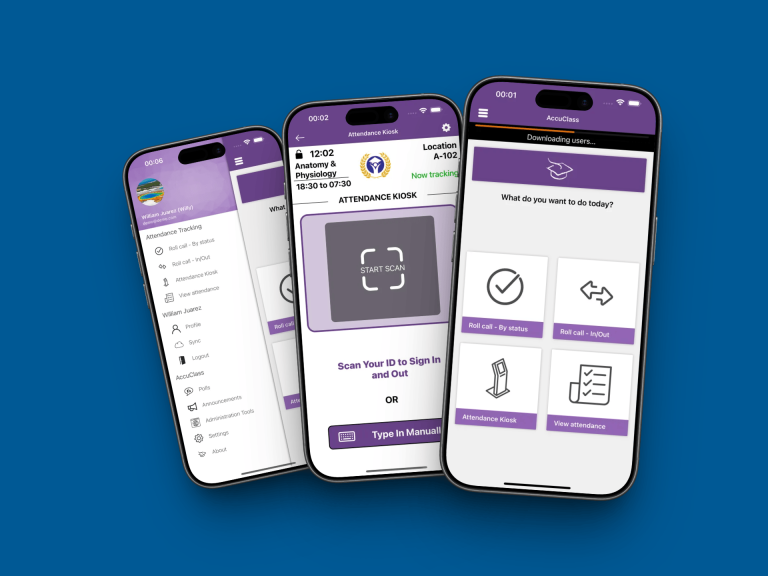
Students check in and out by scanning the classroom QR code with their phone or swiping their ID card. AccuClass marks each student Present, Tardy, Left Early, or Absent by your rules, and alerts the instructor when absences reach your limit.
The QR code changes on a timer you set, so a code sent to a friend outside the room soon stops working
Then agree with your team on what the system should improve, for example a shorter enrollment process or faster replies to families. Those goals become the measures you check after launch.
Questions to ask vendors
The answers to these questions show how a vendor’s school management software will fit your school:
- What does the price include, how does it grow with enrollment, and are there setup or data-migration fees?
- How does it import the records you already hold, and who does that work?
- Which of your tools does it connect to, such as your learning platform, accounting software or online payments?
- Is it hosted in the cloud by the vendor, or installed on your own servers?
- How is student data protected, and who can see each kind of record?
- Who owns your data, and how do you get it out if you leave?
- What training and support come with it, and for how long?
Ask for a demo built on your own scenarios and, where possible, a trial with a sample of your own data. Score the answers against your needs list. Bring a teacher and someone from the office to the demo too, because they will try the screens they would use every day.
Jobs you can give to a specialized tool
You do not have to buy every module from one vendor. Many schools keep their main system, often an SIS, and connect a separate tool where they need more than it offers. Attendance is a good candidate, because it is taken in every class, every day, and a general system may not check students in with ID cards or send alerts on rules you set.
AccuClass, our class attendance software for schools and colleges, records attendance for each class session. Teachers can take roll on screen, or students can sign themselves in by swiping an ID card at a station or scanning a QR code with the AccuClass phone app. QR sign-in needs every student to install the app and log in first, so roll call or ID cards suit schools that keep phones out of class. AccuClass is built around class periods, so it fits middle and high schools, where students change rooms, better than an elementary school that takes attendance once a day.
You set the alert rules, and AccuClass can email any student marked absent for a class. When a student’s absences reach the limit you set, AccuClass adds the student to a staff list. It also notifies the student, the teacher and anyone else you name, such as a parent.
AccuClass is built for attendance and keeps no grades or fees, so it works beside your SIS rather than replacing it. It imports rosters from the files your SIS exports, on a schedule run from a Windows computer at your school, and sends attendance logs and summaries back the same way. Your IT staff can also connect it through published APIs (technical connections a developer can build on), or we can build a direct integration on request.
AccuClass runs in a browser on cloud hosting we manage, so you set up no servers, and data travels over an encrypted connection. Teachers see only the classes they are assigned to. The price is set by the number of students you track. There is no setup fee and no charge for extra classes or teachers, but card readers and other hardware cost extra.
If attendance is the job that takes your school the most time, request an AccuClass demo and see roll call, alerts and attendance reports set up around your class schedule.
Rolling out your new system
A new system pays off once your staff use it every day, and that habit forms in the first weeks after launch. So settle training and the rules for student data before launch day, while records are still being moved in.
Train staff and teachers
Train each group on the tasks it will do, for example grades for teachers and enrollment for the office. Practice with your own data teaches more than a slide tour, and a short written guide gives staff who join later the same start.
Name one person who owns the system after launch. That person answers questions and collects problems, so small issues get fixed before staff drift back to their old spreadsheets. Support matters most in the first weeks, so plan regular check-ins with each group and a simple way to report a problem.
When staff resist the change
Some staff will resist a new system, often because it changes routines that already work for them. Their objections usually point at real problems, so involve them in choosing the system and ask what would make the switch worth it. Then start with the module that removes the most retyping, because staff who see less work in the first week are more willing to learn the rest.
Protect student data
A school management system holds records that families expect you to keep private, so decide who can see each kind of record before any data moves in. In the US, the Family Educational Rights and Privacy Act (FERPA) limits who may see education records at schools that receive US Department of Education funds. The rules themselves are in the FERPA regulations, which the Department publishes on its student privacy site. A private school that takes no such funds is generally outside FERPA, but your state may still set student privacy rules of its own. Whatever system you choose, require secure sign-in, encryption, regular backups and access limited to each person’s role.
How to tell whether your system is working
Your system is working if the problems it was bought to fix have shrunk, so check them a few months after launch and then every year. These four measures fit most schools, and counting them before launch gives you a baseline:
- How many hours your office spends each term on enrollment and report cards.
- How many attendance records need correcting after the school day.
- How many families read your messages or log in to the parent portal.
- How many teachers use the system every week instead of paper or spreadsheets.
Parent surveys and re-enrollment figures add the families’ side, because a system your staff like can still frustrate parents. To improve a school management system you already run, review it once or twice a year. Look for duplicate records, permissions that outlasted someone’s job and modules nobody opens, then ask staff and parents where the system still slows them down.
Check your vendor’s updates in the same review. If it has added AI features, for example automatic reports or predictions about which students may struggle, ask what student data they use and whether you can turn them off. If it has added a mobile app, check whether families can use it or only staff.
Decide what to replace first
If most of your problems sit in one area, such as attendance or fees, add a specialized tool and connect it to the system you have. Ask the vendor to show the connection working with your own files before you sign, because a connection that needs retyping brings back the problem you set out to fix.
If the problems are spread across every office, plan for one system, because one record for each student ends the retyping everywhere at once. Choose during the school year, move your records over the summer and launch before the first day, so no records change systems mid-term.